Accounts Management in Mosaic One for Tenant Administrators
Overview
Mosaic One provides tenant administrators with a centralized interface to manage user accounts and access across all Mosaic One applications. This Accounts Management system is built on a role-based access control (RBAC) model, meaning what a user can do is determined by their role. By leveraging RBAC, Mosaic One lets you easily assign appropriate permissions (admin or standard user) instead of configuring individual access for each person. All Mosaic One services use a single sign-on (SSO) identity provider (IdP) for authentication. In Adtran’s cloud deployment, this IdP is powered by Okta, a leading identity management platform. This integration means users can log in once to access all subscribed Mosaic applications. It also means that user accounts and roles you manage in Mosaic One are actually stored in Okta behind the scenes.
Benefits: For tenant admins, using Mosaic One’s Accounts Management has several advantages:
- Centralized Administration: Add or remove a user in one place to grant or revoke access across the Mosaic suite, thanks to the unified Okta SSO backend.
- Role-Based Access Control: Easily control privileges by assigning roles (Tenant Administrator vs. standard User) rather than setting granular permissions each time. Tenant Admins have full rights to manage the tenant’s settings and users, while regular Users have access only to the Mosaic applications and data you permit.
- Self-Service for Tenant Admins: Service providers (tenants) can manage their own users and access rights without needing Adtran support. This empowers you to onboard new staff, adjust roles, or disable accounts on-demand, saving time.
- Auditability: Mosaic One logs Accounts Management actions for accountability and security. Every change (such as who added a user or changed a role) is recorded in the system’s logs, allowing administrators to review history and satisfy compliance requirements.
Integration with Okta IdP: Because Mosaic One relies on Okta as the identity provider, you have flexibility in how you manage identities. Most admin tasks can be done through the Mosaic One portal’s interface. However, if your organization prefers, you can perform Accounts Management directly in your Okta Admin Console as well – the changes will sync with Mosaic One since it uses the same user directory. For example, adding a user in Okta or removing a user there has the same effect as doing it in Mosaic One. This dual-option approach is useful if you already manage other applications via Okta or have automated provisioning in place. In addition, Mosaic One can integrate with a customer’s existing directory service if configured. In such cases, you might manage users in your own identity system (e.g. your corporate Okta or Active Directory) and those users will sign into Mosaic One via SSO. The sections below will outline how to manage users through Mosaic One’s interface.
Supported User Roles and Access Levels
Mosaic One defines two primary user roles within a tenant organization:
- Tenant Administrator: This role is for administrative users who have full control over that tenant’s Mosaic One instance. Tenant Admins can add or remove users, assign roles and application access, and view system logs. They essentially govern the tenant’s configuration and have access to all data and settings for that tenant. Each tenant should have at least one Tenant Administrator. We recommend having two for redundancy.
- User (Standard User): This is the regular role for non-admin users. A standard User can log in to Mosaic One and use the applications and services that have been assigned to them by a Tenant Admin. They cannot manage other users or change tenant-level settings. This role is meant for frontline staff, support agents, network engineers, or other employees who need to use Mosaic One’s tools but do not administer the system itself.
Only users with the Tenant Administrator role can perform the Accounts Management actions described in this guide. Regular Users will not see the admin menus for managing users or viewing admin logs. In Mosaic One’s RBAC scheme, roles are all-or-nothing at the tenant level – a user is either an admin (with full rights) or not. Application-specific access is handled separately by service assignments (described below). There are no custom role levels beyond these two in the current Mosaic One release.
Multi-Tenant Environments: Mosaic One is a multi-tenant SaaS platform, meaning each service provider operates in an isolated tenant space. If you happen to administer multiple tenants (for example, an ISP that manages Mosaic One for several subsidiary companies or environments), note that user accounts and roles are distinct per tenant. Tenants are logically separated so that no data or accounts are shared between them. Mosaic One may allow you to switch between tenant contexts if your login has been set up with access to more than one tenant (look for a tenant selection menu or consult Adtran support for multi-tenant admin access). Otherwise, you will have separate administrator accounts for each tenant you manage. Always ensure you are operating in the correct tenant context before adding or modifying users, as changes will only affect that one tenant. The system will not allow one tenant’s admin to directly view or modify another tenant’s users or settings.
Viewing a Tenant's Users:
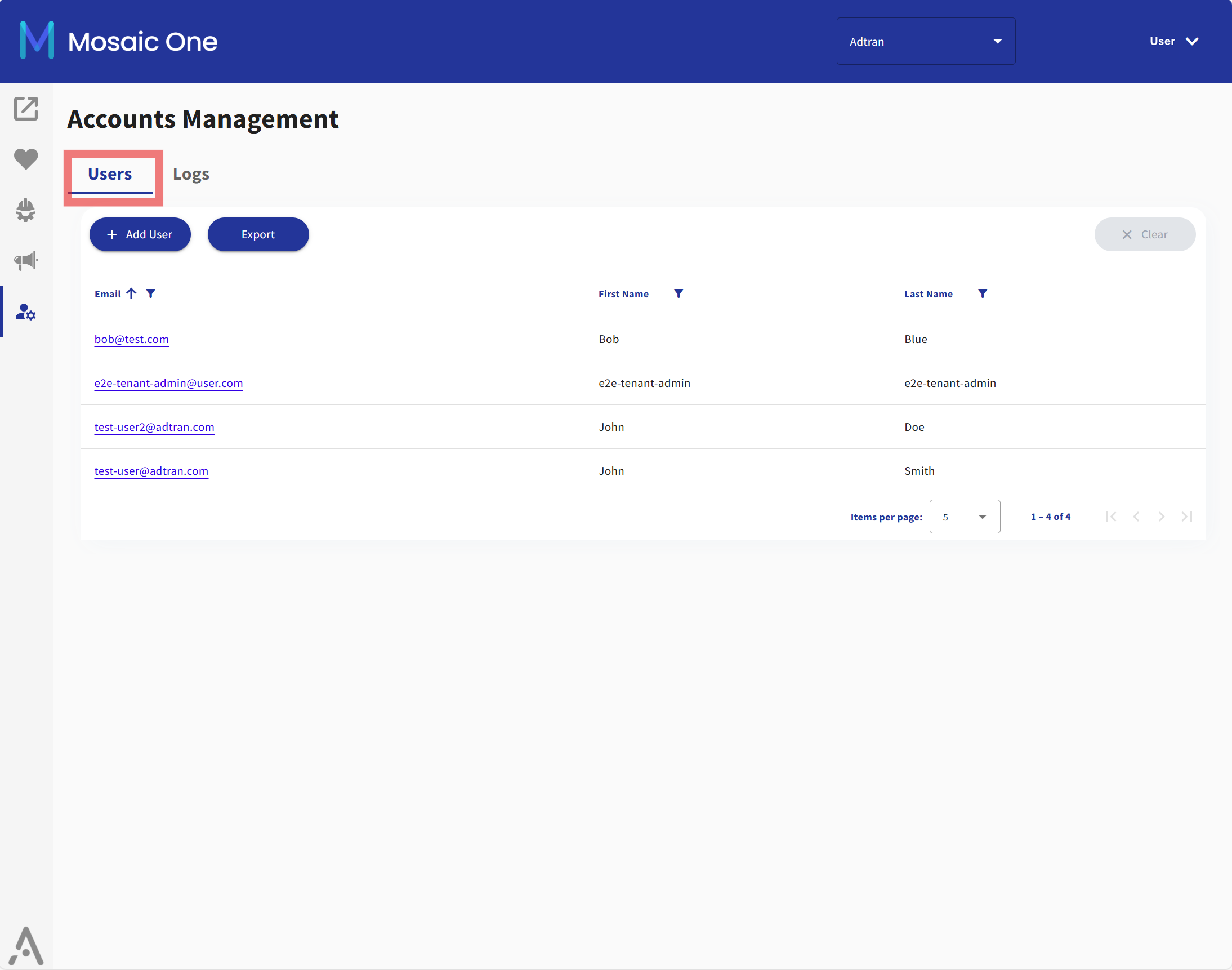
- Navigate to Accounts Management: Log in to Mosaic One as a Tenant Administrator. From the main dashboard, open the Accounts Management menu in the left-side navigation bar. You will see a filterable and searchable table displaying all users available for the tenant you are currently logged into.
Adding a New User
Tenant Administrators can add new users to their tenant to grant them access to the Mosaic One platform and other application services enabled for the tenant by Adtran's onboarding team. This action creates a user identity in the underlying Okta directory (if using the default setup) and associates the account with your Mosaic One tenant.
- Navigate to Accounts Management: Log in to Mosaic One as a Tenant Administrator. From the main dashboard, open the Accounts Management menu from the left-side navigation bar.
- Click “Add User”: In the Users management page, click the Add User button. This opens a form to create a new user account.
- Enter User Mandatory Details: Provide the new user’s information:
- Username as an Email: Enter the user’s email address, which will serve as their login username. Ensure you use a unique email that isn’t already in use for another user.
- First Name: Enter the person’s full name.
- Last Name: Enter ther person's last name.
- Enter User Optional Details: If needed, you can provide additional contact information for the user. These fields are optional but can be helpful for administrative reference, support, or user verification purposes.
- Phone: A contact number for the user. This can be used for identity verification or communication purposes (e.g., SMS alerts, support callbacks).
- Street Address: The user's street address (e.g., office location or billing address). Useful for organizations managing geographically distributed users.
- City: The city associated with the user's address.
- State: The state or province associated with the user’s address.
- Zip Code: The postal code for the user’s location.
- Country Code: The ISO country code (e.g., US, PL, DE) representing the user's country. This may be used for region-specific configurations, localization, or reporting.
- Creating an Account: When all the mandatory fields are filled in, tenant administrator will be able to save data and creating a user in the system through the dedicated.
- Verify Appearance in User List: The new account should now appear in your tenant’s user list. It will show the username/email, assigned role, and which applications they have access to. Initially, the status might be pending activation until the user sets their password. Once they activate, they can log in and start using Mosaic One.
Removing a User
When a user no longer needs access to Mosaic One or any other Adtran's integrated application services, a Tenant Admin should promptly revoke their access. An administrative portion of the Mosaic One’s interface provides a way to remove users; under the hood this will update the Okta directory to deactivate that user’s credentials and remove user's account.
- Open the Users list: As a Tenant Administrator, go to the Accounts Management page (same as in the steps above where you see all users). Find the user you want to remove. You can scroll or search by name/email.
- Select the User: Click on the specific user entry to view their details or actions.
- Remove the User: Choose the user designated for deletion. When prompted, confirm the action by providing user's id to confirm the action.
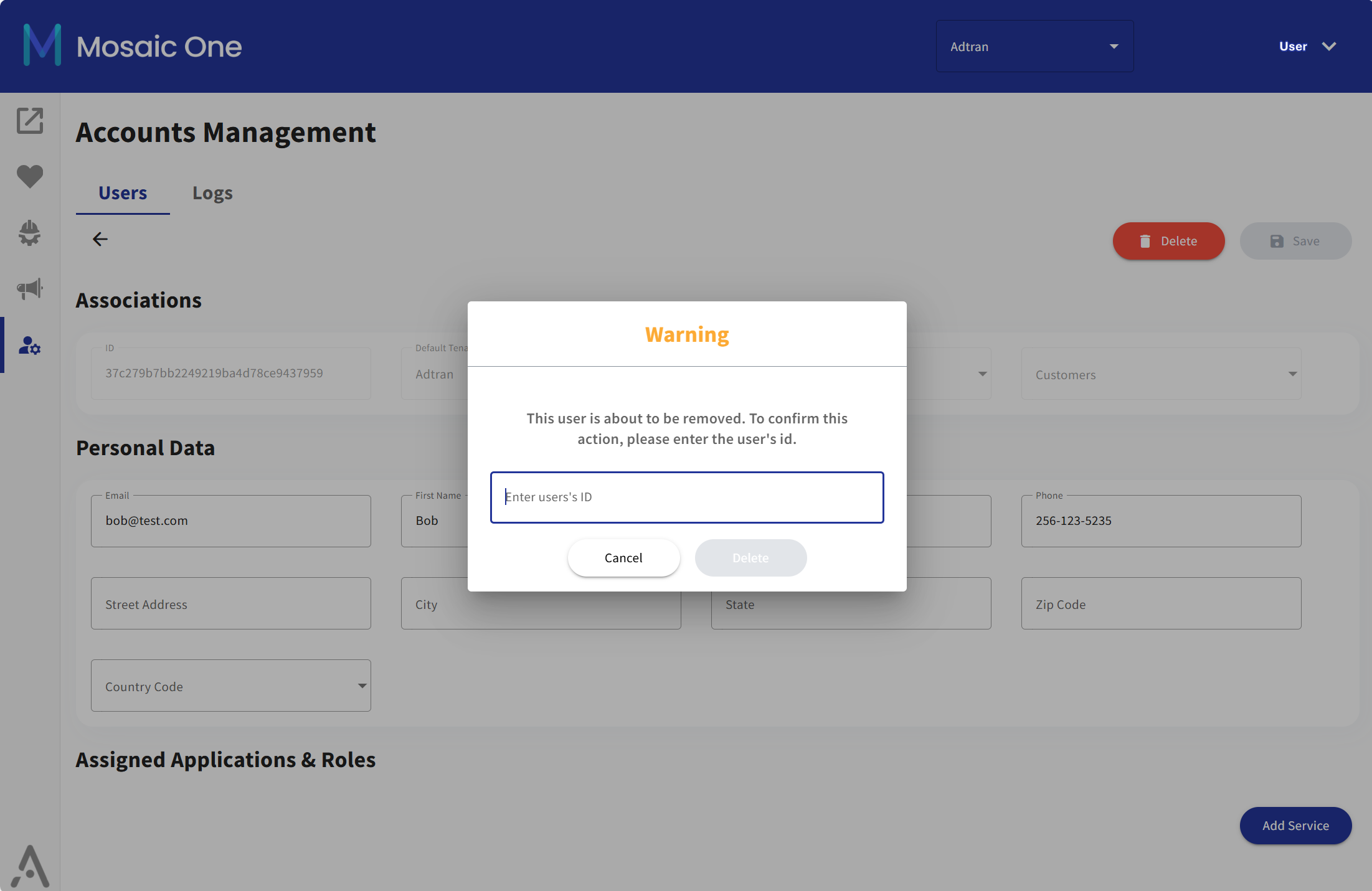
- Result: Removed user will disappear from the user list. The user’s access is revoked immediately. Any active sessions they have may be terminated. Their historical data (e.g. logs of actions they performed) is retained for audit, but they cannot authenticate anymore.
Important Admin Tip: Mosaic One prevents deletion of the last admin account by design. It means that the last tenant admin will not be able to remove own account as long as another admin account is not created for a tenant.
Duplicate the User
The Tenant Administration panel provides an option to duplicate an existing user. The administrators can create new users by simply copying the configuration, roles, and permissions of an existing user profile.
Using this option, administrators can save time and reduce manual input, especially when onboarding users with similar access levels or responsibilities.
- Open the Users list: As a Tenant Administrator, go to the Accounts Management page (same as in the steps above where you see all users). Find the user you want to duplicate. You can scroll or search by name/email.
- Select the User: Click on the specific user entry to view their details or actions.
- Select duplicate button: Click the 'Duplicate' button to create a copy of the selected user.
- Duplicate the user: Enter the necessary details in the form.
- Save the changes: Save the changes by clicking the 'Save' button.
Reset the Password
As a Tenant Administrator, you can reset a user's password directly from the Accounts Management interface. This is typically done when a user forgets their password or is unable to log in.
- Open the Users list: As a Tenant Administrator, go to the Accounts Management page (same as in the steps above where you see all users). Find the user you want to duplicate. You can scroll or search by name/email.
- Locate the User: Identify the user whose password you want to reset. Double-check to ensure you're selecting the correct account.
- Click the "Reset Password" Button: Once you've selected the user, click the "Reset Password" button next to their account. This will initiate the password reset process.
- Confirm the Reset Action: A confirmation dialog will appear, warning you that the user's password will be reset. Review the message carefully, then click "Continue" to proceed.
- After confirmation:: The system will trigger a password reset. The user will receive an email from Okta containing a secure link to reset their password. The link will guide the user through the process of setting a new password.
Assigning Roles and Application Services
Tenant Administrators can modify a user’s role (admin or user) for Mosaic One application service and adjust which application services that user can access. This is useful for changing a user’s permissions or onboarding users into new applications as your organization adopts them. For example, you might need to promote a support engineer to a Tenant Admin for Mosaic One, or grant a marketing, regular user access to the Intellifi application.
To grant an app access to the user:
- Open the User’s Details: In the Account Management page, click on the user you want to edit. This should open that user’s details pane showing their enabled applications and roles.
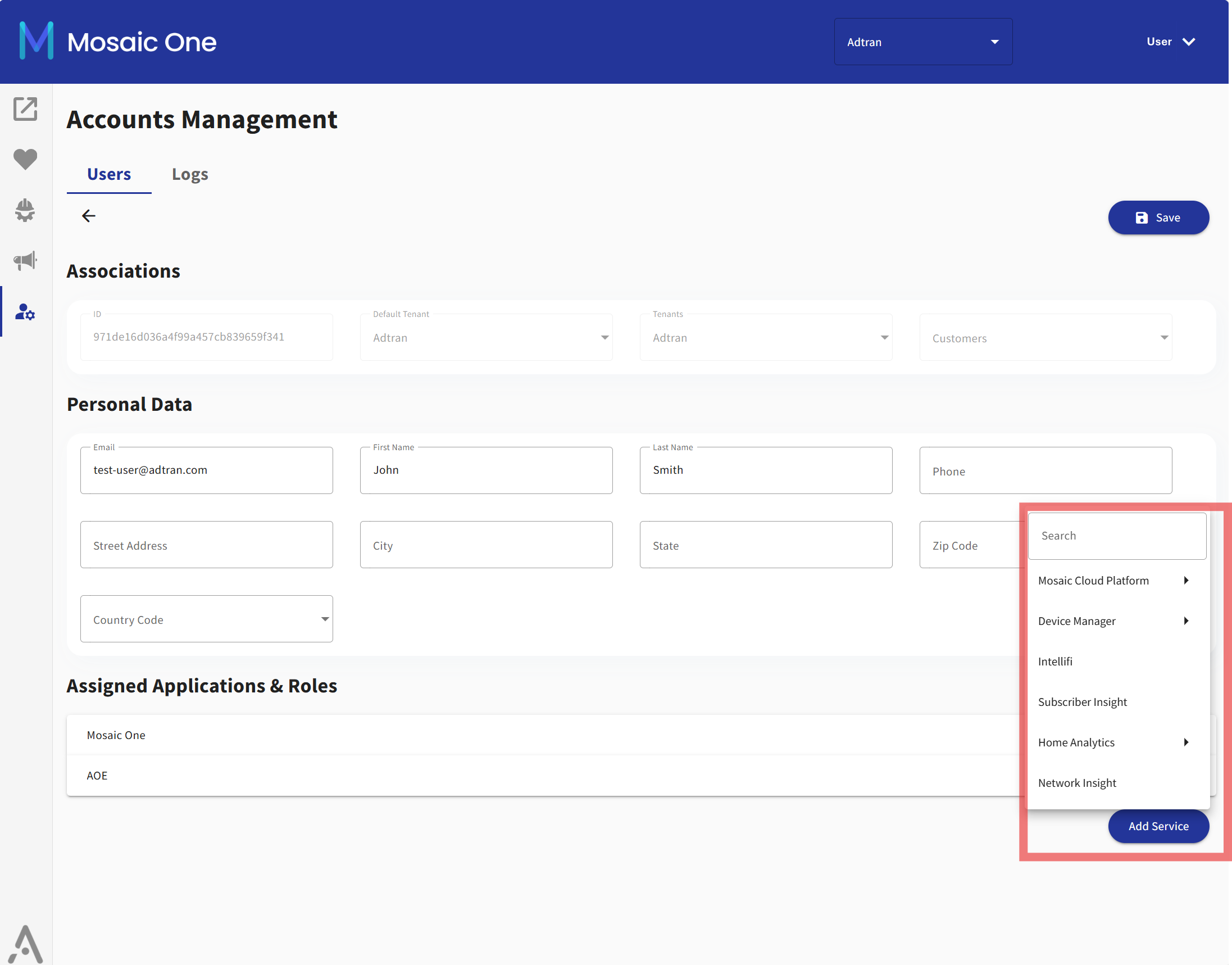
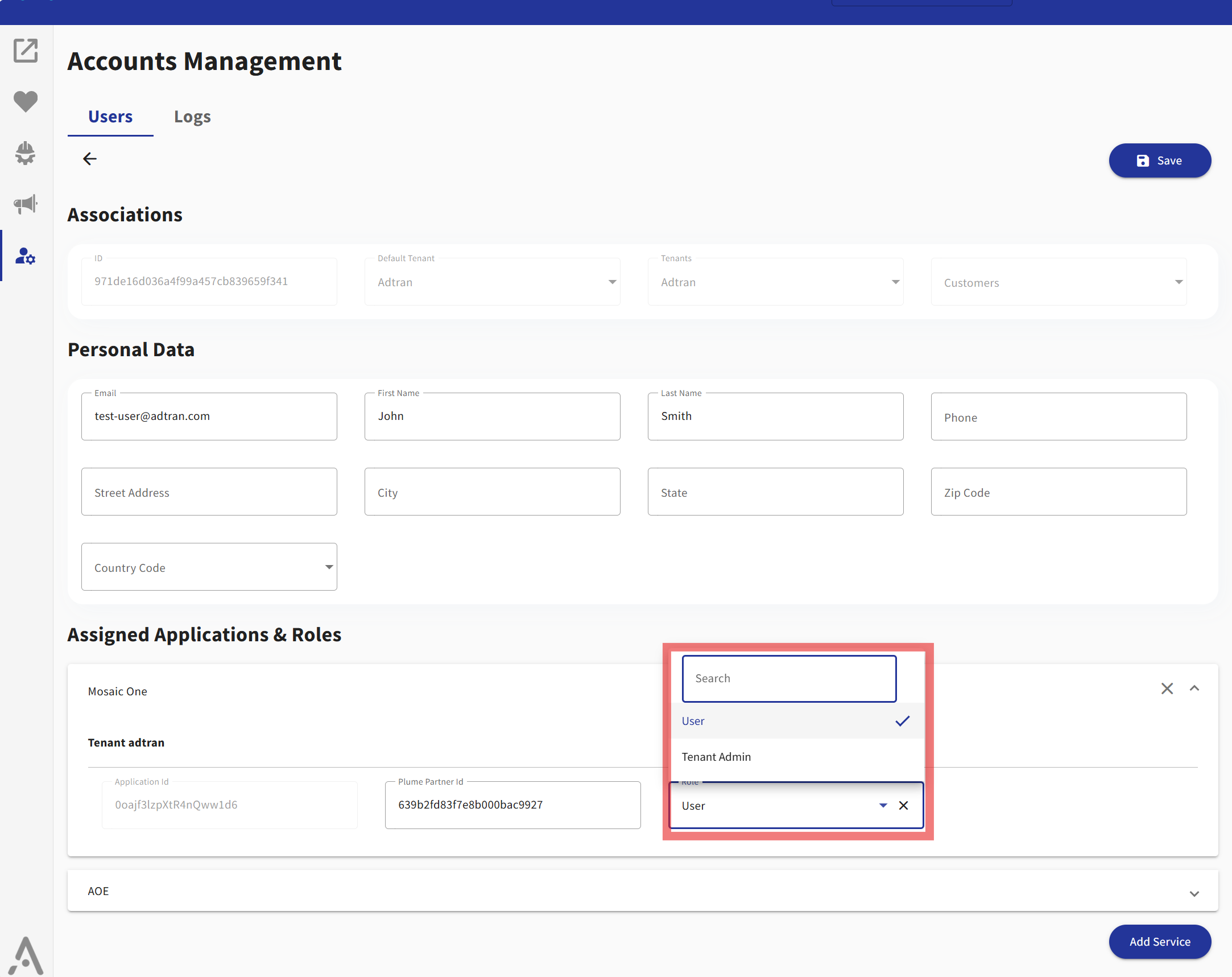
- Choose an app for assignment: In the user's details pane, click on the Add Service button at the right bottom of the pane. There is a searchable list of applications available for a tenant you are administrating. Pick an app for assignment.
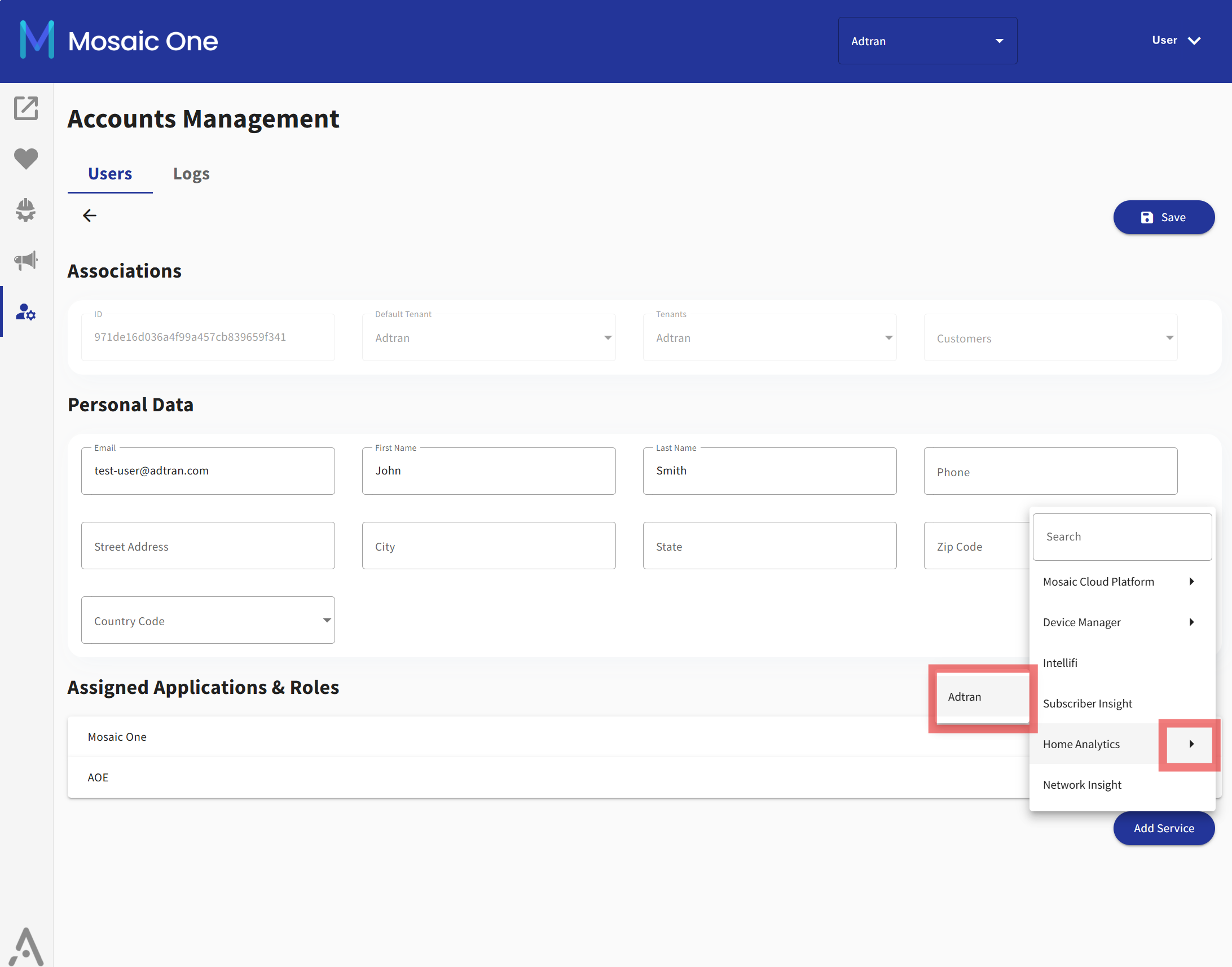
- Choose a tenant for app assignment: Some application services are single-tenant, while others are multi-tenant. Single-tenant apps are represented by a unique physical installation. Access to multi-tenant apps must be configured by selecting the appropriate app instance for the tenant.
- Choose a user's role for the app: Applications define the available roles for users. When configuring access for a user, you can choose which role you want them to have in a particular application.
-
Configure all other necessary parameters: Some applications require additional configuration - for example, a Plume Partner ID for the Mosaic One application service or an SSO toggle (enabled/disabled) for applications that support SSO.
-
Save changes: When all necessary changes have been made, click the 'Save' button.
To change a user’s role or app access in Mosaic One:
-
Open the User’s Details: In the Accounts Management page, click on the user you want to edit. This should open that user’s details pane showing their enabled applications and roles.
-
Choose a user's role for the app: Applications define the available roles for users. When changing access for a user, you can choose the role from the drop-down list.
-
Save changes: When all necessary changes have been made, click the 'Save' button.
Viewing Audit Logs
Mosaic One provides logging of administrative actions and user activities to help you audit changes. Tenant Administrators can review these logs to see a history of who did what and when. This is especially useful for security auditing (e.g., “Who added this user account?”) or troubleshooting permission issues.
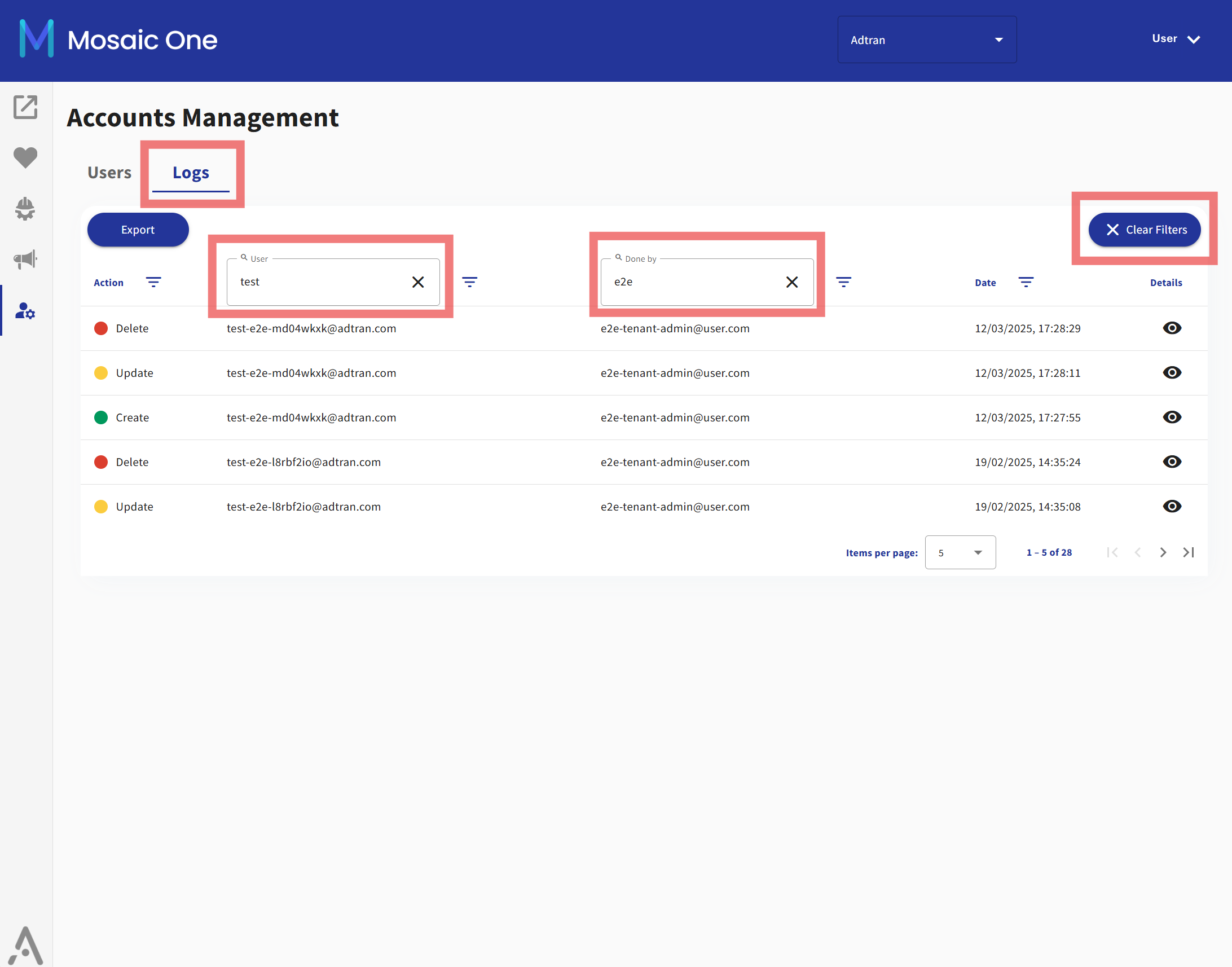
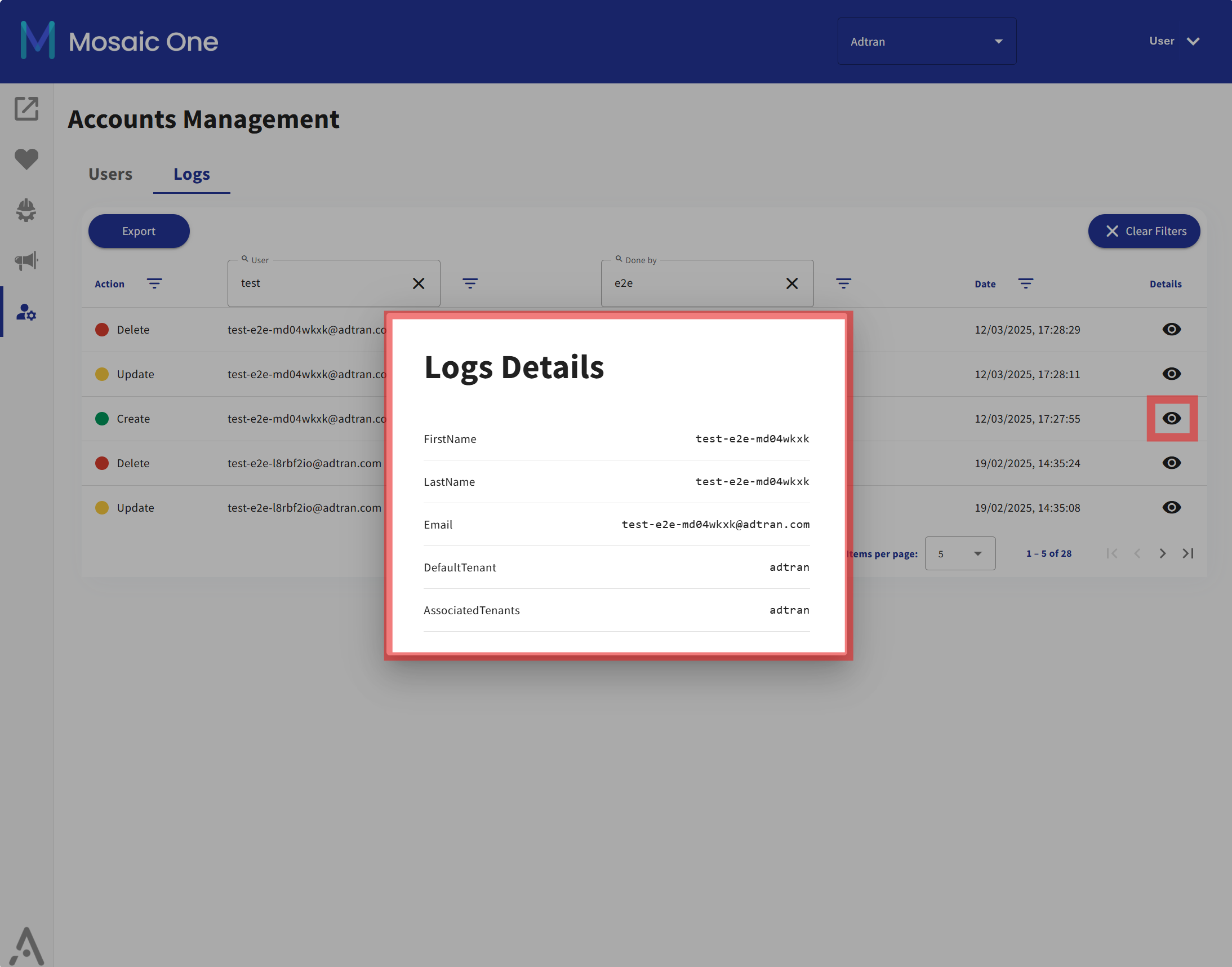
To view the audit logs in Mosaic One, navigate to the Logs tab of the Accounts Management interface. In the Logs page, you will see a chronological list of events related to your tenant. Look for filters or search options to narrow down the events (for example, filter by “User”, and/or "Done by" actions). Typical log entries include: user account creations, deletions, role changes, etc. Each entry will have a timestamp, the user or admin who performed the action, and a description of the event. You can access details by clicking an "eye" button.
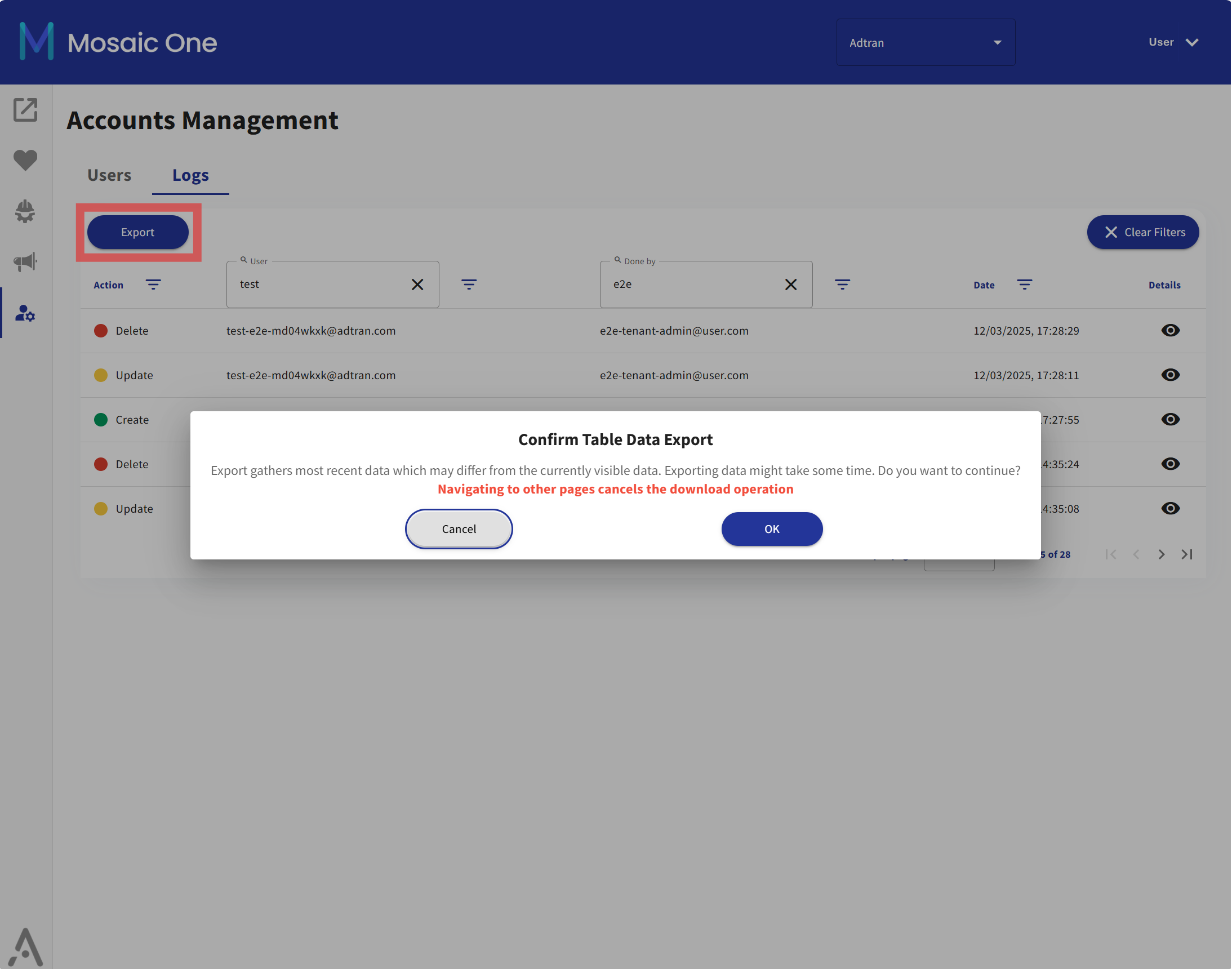
Tip: Regularly review the audit logs to ensure there are no unauthorized changes. Adtran recommends periodic audits of user accounts. Because Mosaic One is often a critical system with access to sensitive network data, maintaining a tight watch on who has admin access and monitoring user additions or removals is a good security practice. The logs can be exported if needed for long-term archival or analysis.
Multi-Tenant Management Considerations
As noted, each Mosaic One tenant is isolated, and Accounts Management occurs within that scope. If you are responsible for multiple tenants, you will need to repeat administrative tasks in each tenant environment, considering that your user has an administrative role in Mosaic One accross multiple tenants.
Mosaic One provides a tenant switcher and if your login is linked to multiple tenants, use that to toggle the context and then manage users as described for each tenant. Be mindful when switching – always confirm which tenant’s users you are viewing before making changes. The interface will display the active tenant name.
There may be some constraints to be aware of in multi-tenant setups:
- Administration Delegation: You cannot delegate admin rights across tenants. Being an admin in one tenant doesn’t grant any visibility or power in another. If you need someone to be an admin in multiple tenants, you must create accounts for them in each and assign the Tenant Administrator role in each.
- Isolation of Logs: Audit logs are separate per tenant. If you administer several tenants, you’ll need to check each tenant’s logs for events within that tenant. There is no unified audit view across all your tenants (unless you aggregate logs externally).
In summary, multi-tenant management is supported, but all actions are tenant-scoped. Keep a clear separation of administrative activities per tenant to avoid confusion. This separation is a security feature ensuring one tenant’s administrators and users cannot inadvertently affect another’s environment.
-
Default Scenario: Out of the box, when your tenant is onboarded to Mosaic Suite, Adtran provides Accounts Management service accessible from Mosaic One umbrella platform. All user accounts you create via Mosaic One are actually created in a dedicated Okta organization (cloud directory) managed for Mosaic. You typically don’t need to interact with Okta directly – Mosaic One handles the required calls to create users, update groups, etc. The login page you use is essentially an Okta sign-in page themed for Mosaic One. The benefit is you get a robust, enterprise-grade IdP without needing to deploy one yourself. User passwords, authentication policies, and SSO tokens are all handled by Okta under the hood. Adtran enforces security policies such as strong password requirements for admin users in this IdP to keep your tenant secure.
-
Using Your Own Okta (or other IdP): Some service providers may choose to integrate Mosaic One with their existing identity provider. Mosaic One supports SSO integration via SAML/OIDC, which can allow your corporate Okta, Azure AD, or other IdP to authenticate users. In this scenario, you might provision and manage users in your own directory, and those identities are trusted by Mosaic One when they sign in. For example, you could have an Okta organization that already has all your employees; Adtran can configure Mosaic One to trust that IdP. Then when a user logs in, Mosaic One will create a corresponding user entry (or use JIT provisioning) in the tenant. However, note: Even with external SSO, you will likely still need to assign Mosaic One roles (admin/user) and app access for each user either through Mosaic One or via group attributes in the SSO assertion. If you do fully use your own IdP, you would manage user creation/removal on that platform (and Adtran will not enable Accounts Management for your tenant to avoid confusion). The Mosaic One terms indicate both scenarios are supported – either Adtran’s directory or a customer’s directory service can be used, so choose what fits your IT environment.
-
Password Management: Whether you manage users in Mosaic One or Okta, the authentication is handled by Okta. Users can reset their passwords using the “Need help signing in?” link on the login page, which is an Okta feature. As an admin, you generally do not set or know users’ passwords - you just initiate the reset process. This is more secure and follows best practices.
Mosaic One’s Account Management provides a unified interface to manage user access across critical network applications, leveraging Okta’s enterprise-grade identity platform. With a centralized administration portal, you gain both ease of use and strong security through Okta integration.
Understanding how Mosaic One and Okta work together allows you to choose the access management model that fits your organization - whether managing users entirely through the Mosaic One portal or combining it with your ISP domain’s identity provider (IdP), provided it is integrated with Adtran’s Okta.
Whichever approach you take, always follow security best practices:
Apply the principle of least privilege—grant admin roles only when necessary. Regularly review and audit user accounts and assigned roles. Immediately revoke access for users who leave your organization. Mosaic One, with its built-in audit logging and Okta integration, is designed to help you maintain a secure, well-governed, and multi-tenant environment.